






How to Connect Box Phone Farm via USB with Genfarmer [Quick Guide]

Connecting a box phone farm via USB may seem simple, but many users encounter issues such as devices not being detected, driver errors, or unstable connections. Without the correct setup, these problems can interrupt your workflow and reduce efficiency when managing multiple devices. In this guide, you’ll learn how to connect your box phone farm via USB step by step, along with key tips to ensure a stable and error-free setup using GenFarmer.
Steps to connect Box Phone Farm via USB with Genfarmer
Here is a step-by-step guide to connect the Box Phone Farm via USB with Genfarmer:
1. Check devices and accessories
Before you begin, make sure that all accompanying devices and accessories are in good condition. Carefully check the USB cables, USB hubs, and power cords to ensure there is no damage. This helps ensure stable device operation, avoiding connection failures or interruptions during use.
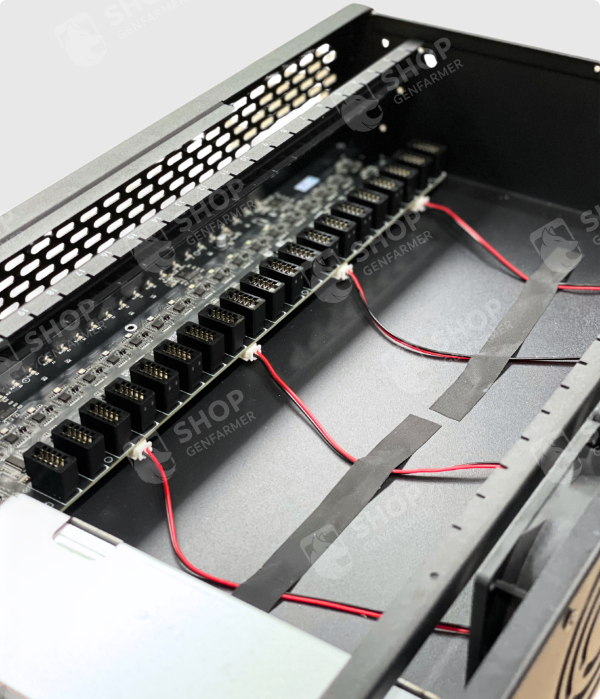
2. Connect and recognize the device
Next, connect the GenFarmer USB directly to the USB port on your computer. Then, power the Box Phone with the power cord to ensure the device is operational. Check if the computer recognizes the device immediately, as this is a crucial step to proceed smoothly with the next installation steps.
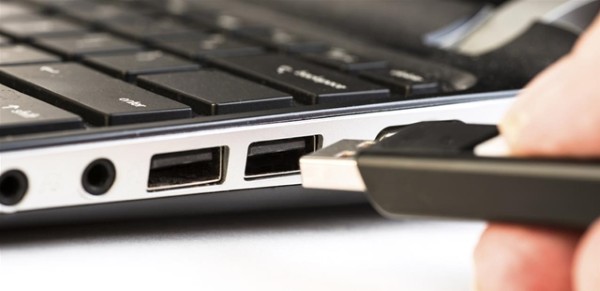
3. Install the GenFarmer Box phone software and drivers
To connect the Box Phone Farm via USB, the next step is to download and install the Genfarmer software. Visit the Genfarmer.com website, download the software to your computer, and proceed with the installation. After the installation is complete, you need to register an account and log in to the software to use all its features.

4. Check the connection
After installing the software and connecting the device, you need to check the USB connection again. Make sure that all the lights on the device are solid blue (or purple), which indicates that the USB connection is successful and the device is ready to use.
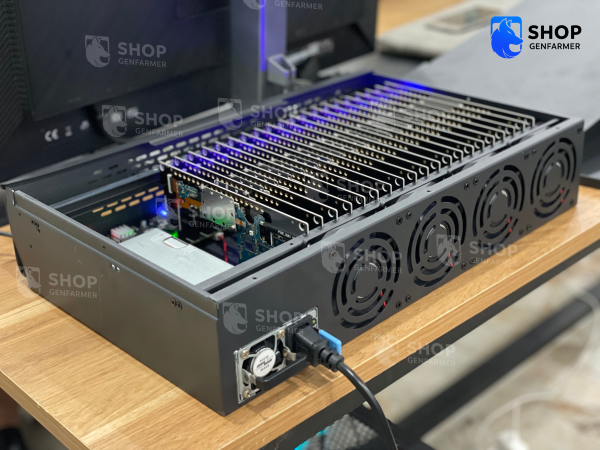
5. Start the GenFarmer software
Open the GenFarmer software on your computer and follow the setup instructions in the software. After starting, you will see all connected devices ready for use. If the computer does not recognize all devices, you can go to Window ⇒ Command, type the command adb devices and press Enter to check the number of connected devices.

Common Errors When Connecting Box Phone Farm via USB
Device Not Recognized by the Computer
One of the most common issues occurs عندما the computer fails to detect the connected devices. This is usually caused by missing or outdated drivers, especially when working with Android-based systems. Without the correct drivers installed, the system cannot establish proper communication between the box phone farm and the computer. As a result, the management software will not be able to identify or control the devices.
Driver Installation Problems
Improper or incomplete driver installation can also lead to connection failures. In many cases, users install generic drivers that are not fully compatible with their devices. This creates instability or prevents the system from recognizing multiple devices simultaneously. Ensuring that the correct and updated drivers are installed is essential for a smooth and stable connection.
Port Conflicts and Software Interference
Another frequent issue is conflict between USB ports or interference from other software running on the computer. Applications that manage mobile devices, security tools, or background services may block or interrupt the connection process. This can result in devices disconnecting randomly or failing to respond when controlled. Closing unnecessary programs can significantly improve connection stability.
Unstable USB Connection
Connection instability is often caused by poor-quality cables, loose connections, or insufficient power supply. When the hardware setup is not stable, devices may disconnect intermittently or fail to operate consistently. This directly impacts the ability to manage multiple phones effectively, especially in large-scale setups. Using high-quality cables and ensuring a stable power source can help prevent these issues.
Incorrect Setup Configuration
Incorrect configuration during the setup process can also cause connection problems. This includes using the wrong settings in the management software or skipping important setup steps. Even small configuration mistakes can lead to devices not functioning as expected. Following the correct setup process carefully helps ensure that the system runs smoothly.
Notes when connecting Box Phone Farm via USB
USB Cable Quality
One of the important factors when connecting a Box Phone Farm via USB is to use high-quality USB cables. Poor quality cables can reduce connection performance, cause errors, or interrupt the synchronization process between devices. Make sure the USB cables you use are long enough, sturdy, and support high-speed data transfer.
Phone and Software Configuration
To ensure a 100-device Box Phone Farm operates stably, the phones need to be configured correctly. If you use software like LineageOS, make sure the operating system on the phone is compatible with the farm software. At the same time, you also need to install and update the necessary drivers for a smooth USB connection.
Temperature Management when connecting multiple devices
When connecting multiple phones via USB, temperature management is very important. The devices will generate heat during continuous operation, so prepare an effective heat dissipation solution such as cooling fans or a cooling chamber to avoid overheating that can damage the equipment.
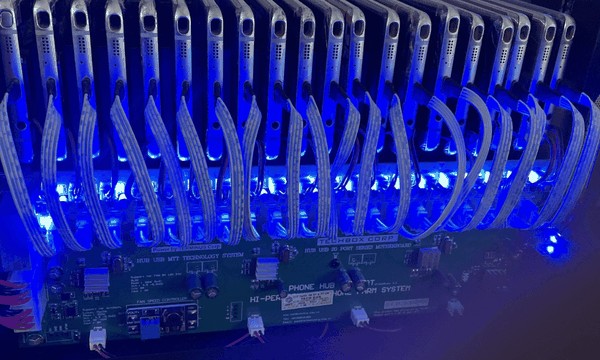
Benefits of connecting Box Phone Farm via USB with Genfarmer
Connecting the Box Phone Farm via USB with Genfarmer offers many practical benefits. First, connecting via USB helps ensure a stable connection, saves costs, and minimizes latency compared to a wireless connection. Genfarmer helps you centrally manage all devices and synchronize them effectively, thereby increasing productivity and reducing manual operation time.
In addition, connecting via USB also makes it easy to monitor and check the operational status of each device, helping you quickly resolve any issues that arise. This not only increases reliability but also helps improve the efficiency of exploitation and application farming.
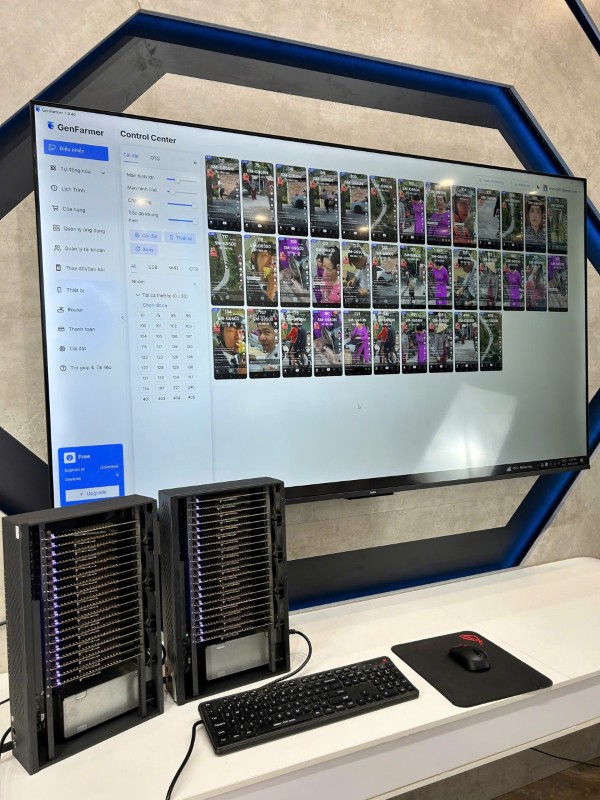
Conclusion
Connecting a box phone farm via USB with Genfarmer provides an optimal solution for large-scale farm systems, helping you manage hundreds of devices simply and effectively. Ensure that you follow the installation and connection check steps accurately to fully utilize the system’s potential. If you encounter any problems, check the devices and use diagnostic tools like the adb devices command to handle them promptly.
Wishing you success in deploying your 100-device Box Phone Farm system via USB with Genfarmer!






 VOUCHER
 DEMO 1-1